
Door Schedule: What It Includes and How to Prepare One
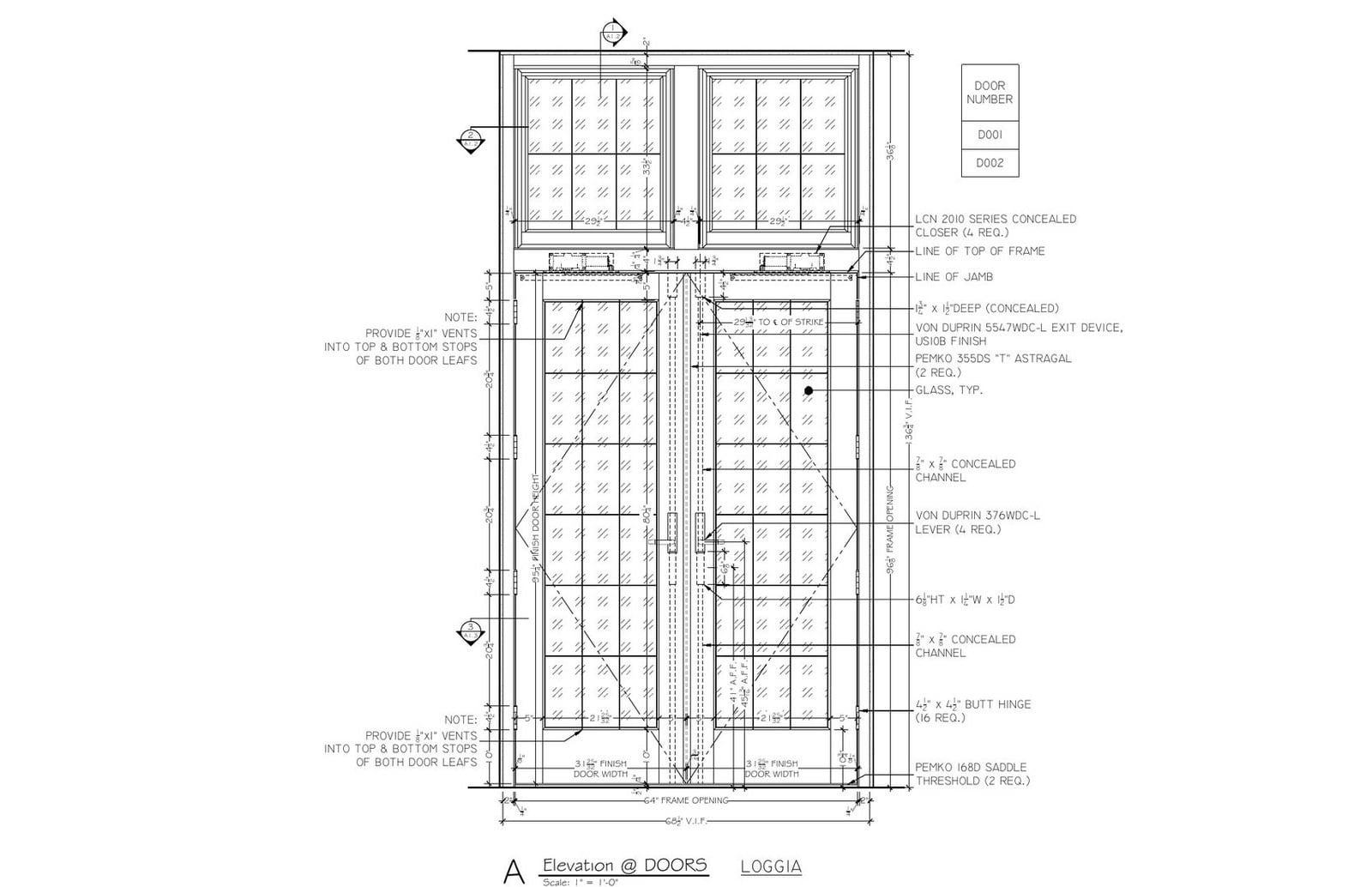
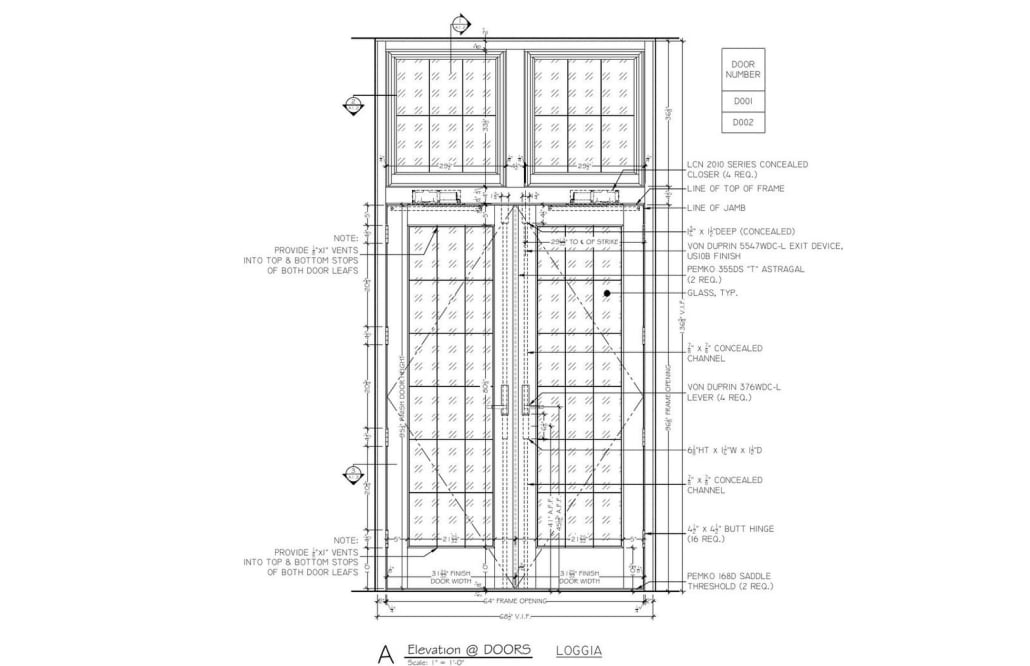
A pair of loggia doors drawn for the shop. The small box on the right says which rows of the schedule this elevation belongs to.
A door schedule is a table in the drawing set where every door on the job gets its own row. You look up the number from the plan and the row tells you how big the door is, what it’s made of, what frame it sits in, how long it has to hold back a fire, which hardware goes on it and where to find the details.
For a three bedroom house you might not bother. For a school with three hundred openings you don’t have a choice. The GC counts doors off this table, the door supplier prices from it, the hardware consultant uses it to figure out which doors get closers. And when the table and the plans tell two different stories, it tends to come out when the doors are already on a truck.
Contents:
- How door tags tie the plan to the schedule
- What each column in a door schedule means
- Door types and the elevation legend
- Handing and swing
- How a window schedule differs
- Making one in Revit or AutoCAD
- Mistakes we see on almost every job
- Door schedule FAQ
How door tags tie the plan to the schedule
On the floor plan each door has a little tag next to it, a circle or a hexagon with a number inside. That number is how you find the door in the table. Most of the offices we draft for number doors by the room they lead into. Door into room 214 is 214. If 214 has a second door, that one is 214A. It looks like overkill on paper. Then you’re standing in a corridor with forty doors that all look the same, and you’re glad somebody did it.
Some teams just count doors 1, 2, 3 through the building. It’s faster on day one. The trouble starts when the client adds a door on level two three weeks before issue. Now you either live with numbers out of order, or you renumber half the floor and every sheet that refers to them. Numbering by room handles late changes a lot better.
You’ll usually find the schedule on its own sheet, sometimes two, toward the back of the architectural part of the construction documents. The door type legend and the hardware sets tend to sit right next to it.
What each column in a door schedule means
Nobody hands out an official template, and every office has its own version. Still, after a few hundred of these, the columns we see come in the same handful of groups.
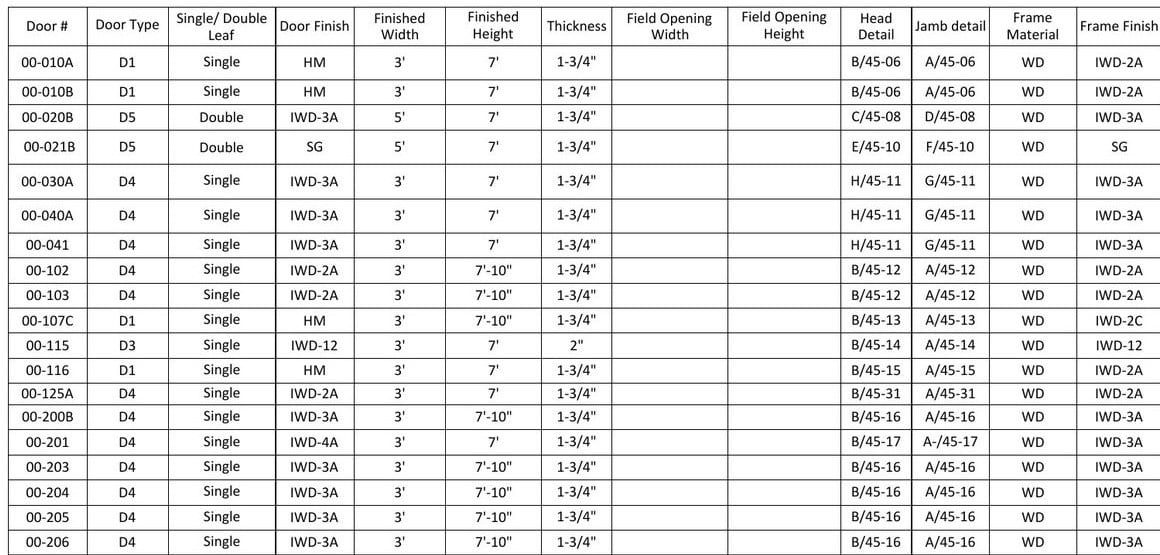
Part of a wood door schedule. Field opening columns stay blank until someone measures the site.
Identification. The door number, and on many sets the room on each side. A note like “corridor side” shows up now and then when it actually matters which face you’re looking at.
The door itself. Width, height and thickness, in the format doors are sold in. 3′-0″ x 7′-0″ x 1-3/4″ is your everyday commercial leaf. Next comes the door type, which sends you to the legend, plus material and finish code. Hollow metal, wood, aluminum, glass. Note single or pair here too. A 6′-0″ opening can be one wide leaf or two 3′-0″ leaves, and the supplier can’t read your mind.
The frame. Material, frame type (again pointing to the legend) and finish. A hollow metal frame in a metal stud wall gets drawn nothing like a wood jamb in a house, so leave this column empty and somebody will guess.
Rough opening. Not every office includes it. When it’s there, the framer knows what hole to leave without calling anybody, which on a big job is a lot of calls saved.
Fire rating. On most commercial jobs you’ll see 20, 45, 60 or 90 in here, and now and then a note about the label. Don’t make this number up while filling in cells. It comes out of the code review, and it has to apply to the frame as well. Put a 90 minute door in a frame with no rating and you don’t have a 90 minute opening.
Hardware set. Just a code, HW-03 or similar. The actual list of hinges, lockset, closer, stops and seals lives in the hardware sets, which the architect or a hardware consultant writes and ties back to the spec. The schedule only says which set goes on which door.
Details. Where the head, jamb and sill are drawn. The idea is simple: a carpenter reads row 214, sees B/45-16, and goes to that sheet instead of calling the architect.
Remarks. The junk drawer. Dutch door, card reader, vision panel, undercut for return air, match existing. We try to keep it to a few words a row, and when one note shows up on thirty rows we just make it a column.
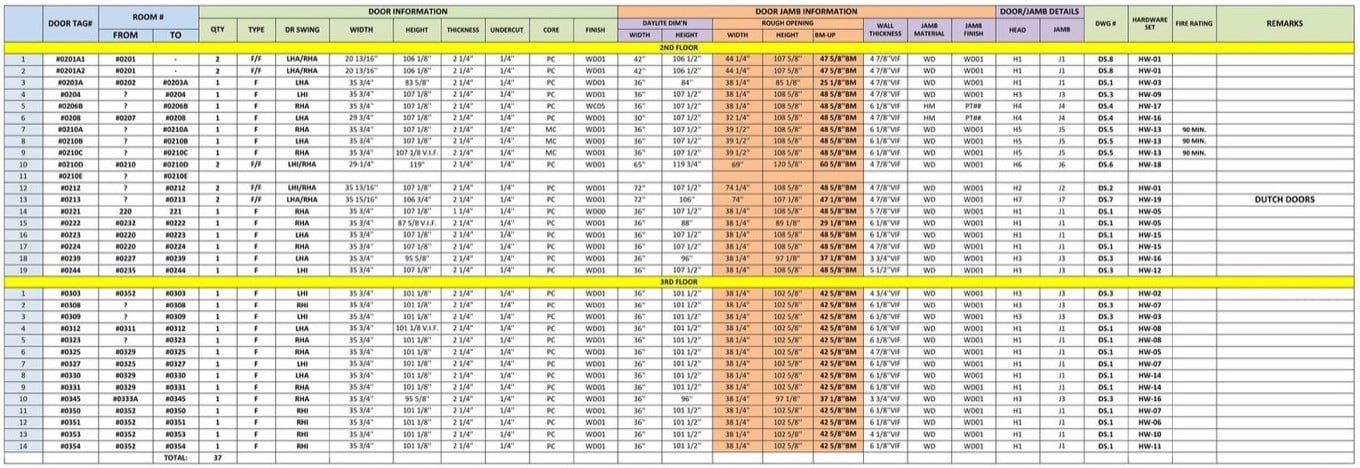
Same idea, more columns: rough opening, jamb data and a hardware set on every row.
Door types and the elevation legend
Try describing three hundred doors in words and see how far you get. That’s why the table only carries a type code. On the job in the pictures here D1 was a hollow metal door supplied by others, D3 a 2 inch wood door, D5 a pair. Somewhere else in the set there’s a legend, and each type is drawn there once, small, with its panels, glass and louvers. Frames get a legend of their own.
That legend is what keeps the schedule from turning into a novel. If the job has twenty D4 doors, D4 gets drawn once. It’s also where we check the clear opening against accessibility requirements, before anyone orders a leaf, because a 3′-0″ door doesn’t give you 36 inches of clear width once it’s open.
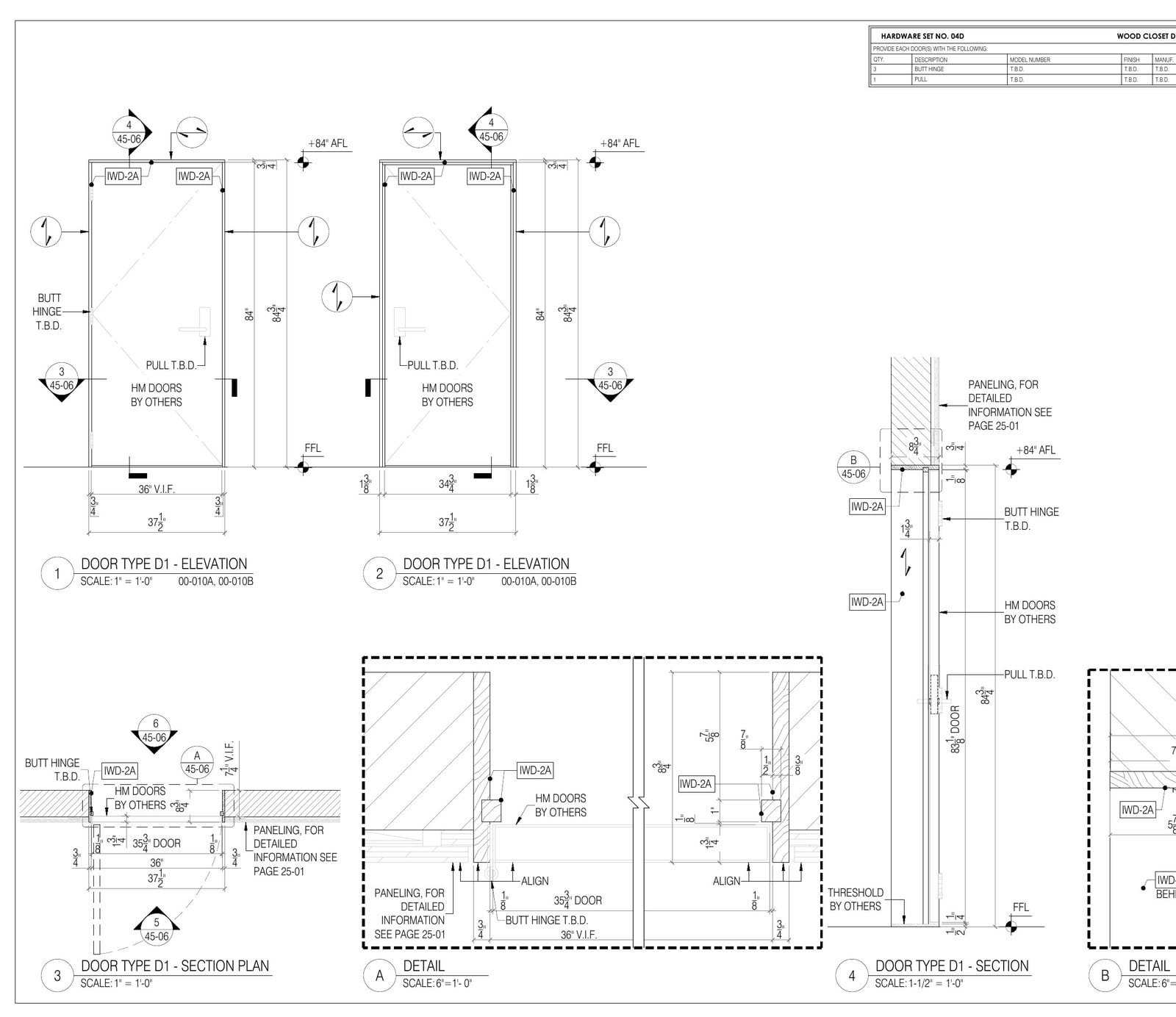
Door type D1 from the same job. The schedule says D1, this sheet says what D1 means.
Cabinet doors are their own thing. They’re drawn on the millwork shop drawings, and their hinges and pulls go on a millwork hardware schedule rather than the building door schedule.
Handing and swing
Handing tells you which way a door opens. The usual US rule: stand on the outside, where the key goes in, and look at the hinges. Hinges on your left and the door opens away from you, that’s a left hand door. Hinges on your right, right hand. If it opens toward you, add a reverse: LHR or RHR.
Lots of schedules leave handing out, since the plan already shows the swing. That works right up until someone mirrors a door late in the design, the plan gets updated and the hardware supplier never hears about it. Locksets and closers come in hands, so the wrong hand means the wrong part on site. On any job with real hardware we’d keep a handing column or a swing key like this one, even if it makes the table wider.
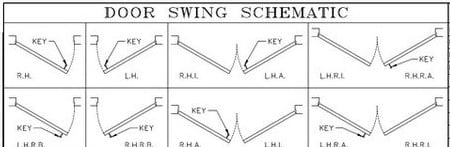
A swing key from a door schedule sheet, singles on the left, pairs on the right.
How a window schedule differs
Doors and windows often share a sheet. Same idea: tag on the plan, row in the table, type in the legend. The columns are where they part ways.
- Height. Besides the rough opening, a window needs to know where it sits. Sill height or head height from the finished floor, one or the other, and it’s surprising how often neither is there.
- How it opens. Casement, awning, slider, double hung, or doesn’t open at all. The legend shows it with those dashed diagonals everyone learns in school.
- Glass. What kind, and where it has to be tempered. If the energy forms were done with a certain U-factor and SHGC, those numbers belong in the schedule too, or the window that shows up won’t match the paperwork.
- Egress. A bedroom window in a house has to open wide enough to climb out of. We flag those rows, because swapping one for a cheaper, smaller unit is a classic value engineering mistake.
- Product. House plans tend to name the window maker and series right in the schedule. Door schedules almost never go that far.
Making one in Revit or AutoCAD
Revit doesn’t make you draw the schedule. It reads it off the model. Each door is an object carrying its own parameters, the schedule view lists them, and if somebody deletes a door on the plan, its row is gone from the table too. You add the columns you want as parameters, sort and group, drop the schedule on a sheet. Sending it to the contractor as a spreadsheet takes a minute. Honestly, schedules are one of the best reasons to document a building in BIM, and they come back with the model as part of our Revit modeling services.
AutoCAD gives you two routes. One is a plain table you type into, which is fast and very easy to get wrong. The other is door tags made as blocks with attributes, and a table pulled from them with data extraction, so at least the numbers and the count come from the drawing. Either way you’ve got a drawing and a table that someone has to keep in sync by hand, and that’s where most AutoCAD schedule errors come from.
Whatever the software, we draft the schedule together with the plans, not as an afterthought at the end. It’s part of what our CAD drafting services include on any construction set, drawn from your design and to your office standards.
Mistakes we see on almost every job
- Counts don’t match. 112 tags on the plans, 109 rows in the schedule. Three doors got added in DD and never made it to the table.
- Same number twice. Two doors labelled 105, one each side of the corridor. Guess how many the supplier ships.
- Pairs that look like singles. A 6′-0″ opening and no hint whether it’s one leaf or two.
- Rated door, blank frame. Someone filled in the rating for the door and skipped the frame.
- Hardware set TBD. Normal in DD. Still TBD on the issued set, and there’s a hole in every bid.
- Detail references to nowhere. Head detail 4 on sheet A-601, and A-601 only has details 1 to 3.
Each of these is a five minute fix before the set goes out. After the doors are ordered, it’s days.
Door schedule FAQ
What is a door and window schedule?
Think of it as the parts list for every opening on the job. Each door and each window has a row, found by the tag number on the plan, and the row says how big it is, what type, what it’s made of and which details show it. Doors and windows often share a sheet, because the system is the same for both.
What does a door schedule typically include?
At minimum: number, size, type, material, finish, frame, fire rating, hardware set and detail references. Most of the sets we work on also carry the room names, a rough opening and a remarks column. Handing is optional on paper but we rarely leave it out.
What to include in a window schedule?
Tag and type, rough opening, sill or head height, how it opens, frame and finish, glass. On houses, mark egress windows. If the energy compliance was done with specific U-factor and SHGC numbers, put them in. And on residential work it’s normal to name the maker and the product line.
How to make a door and window schedule in AutoCAD?
Quick and dirty: insert a table and type. Better: build your door and window tags as attribute blocks, then use Data Extraction to generate the table from them. The second way means the count can’t drift away from the plans as easily. With either one, we still compare table to plan before the set goes out.
How to export Revit door schedule to Excel?
With the schedule view open, File, Export, Reports, Schedule. You get a text file Excel can read. It’s a copy, not a link, so whatever you change in the spreadsheet stays in the spreadsheet. Export again after each revision.
Wonder how much high-quality drafting services cost? Check out the examples of our real projects with pricing.


Nathalie Paul
Blog Writer
Nathalie is a senior draftswoman at ArchiCGI. She loves the fine art of creating quality drawings. After work, Nathalie is passionate about Ishvara yoga, traveling, and strong bitter coffee.

Leave a Reply
Want to join the discussion?Feel free to contribute!